Quickstart
Welcome to Acluebox!
This quickstart guide will get you up and running with Acluebox in just a few minutes. By the end of this guide, you’ll understand how to use Acluebox to create, customize, and manage your prompts for common tasks.
1. Create a New Prompt
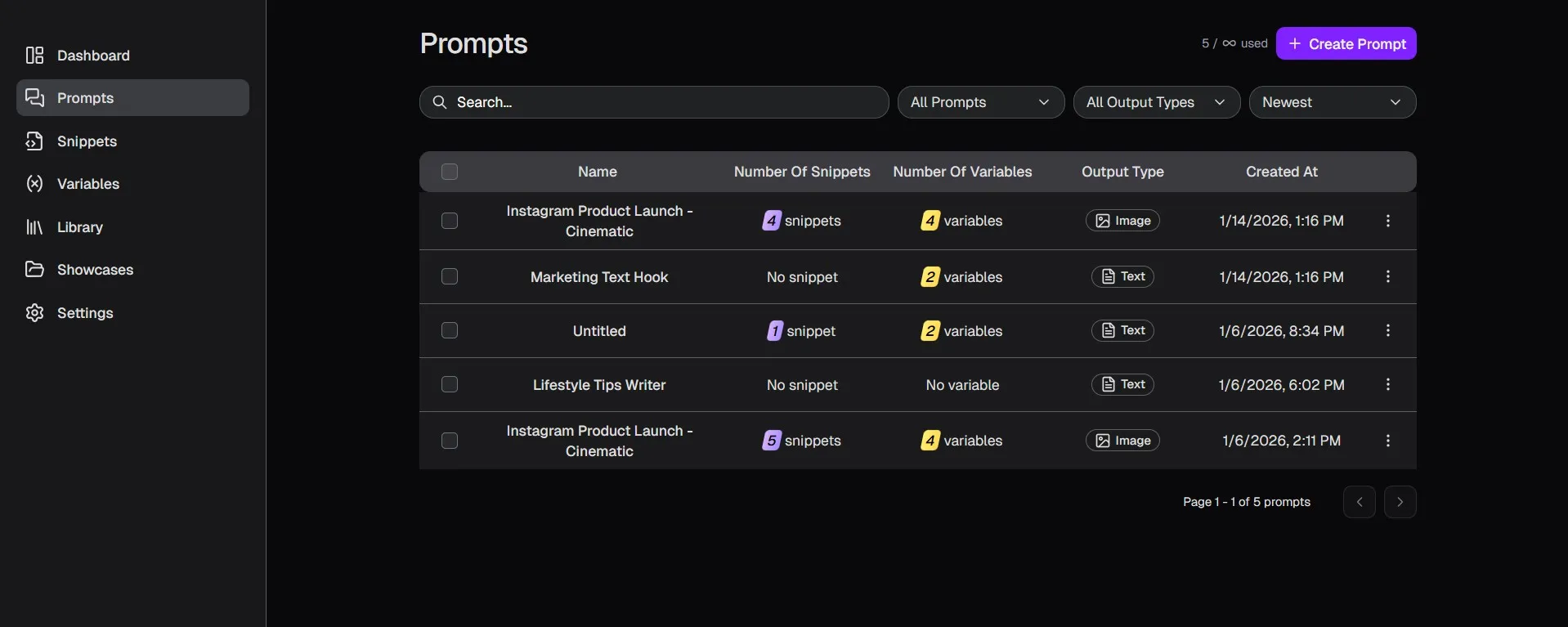
Navigate to the Prompts page and click the Create Prompt button in the top right corner to get started.
2. Write Your Base Prompt
You can start by typing your base prompt directly into the prompt box.
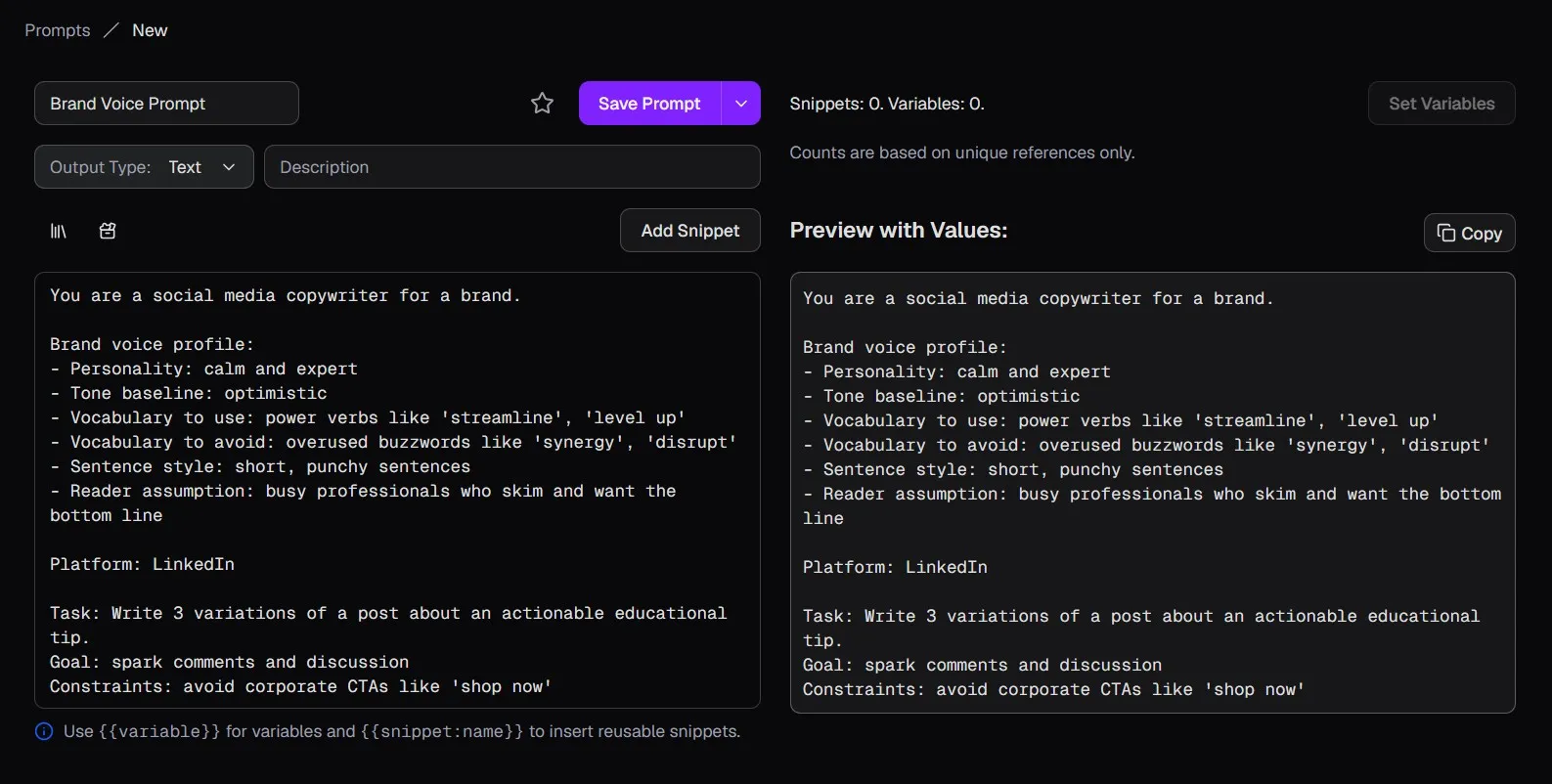
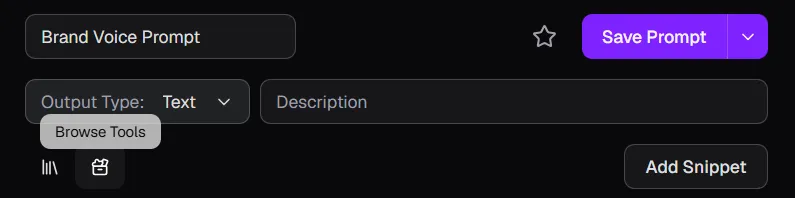
Alternatively, you can use the buttons below the Output Type section to search for pre-made prompts from the Library or create one using a Tool like the Prompt Framework Builder.
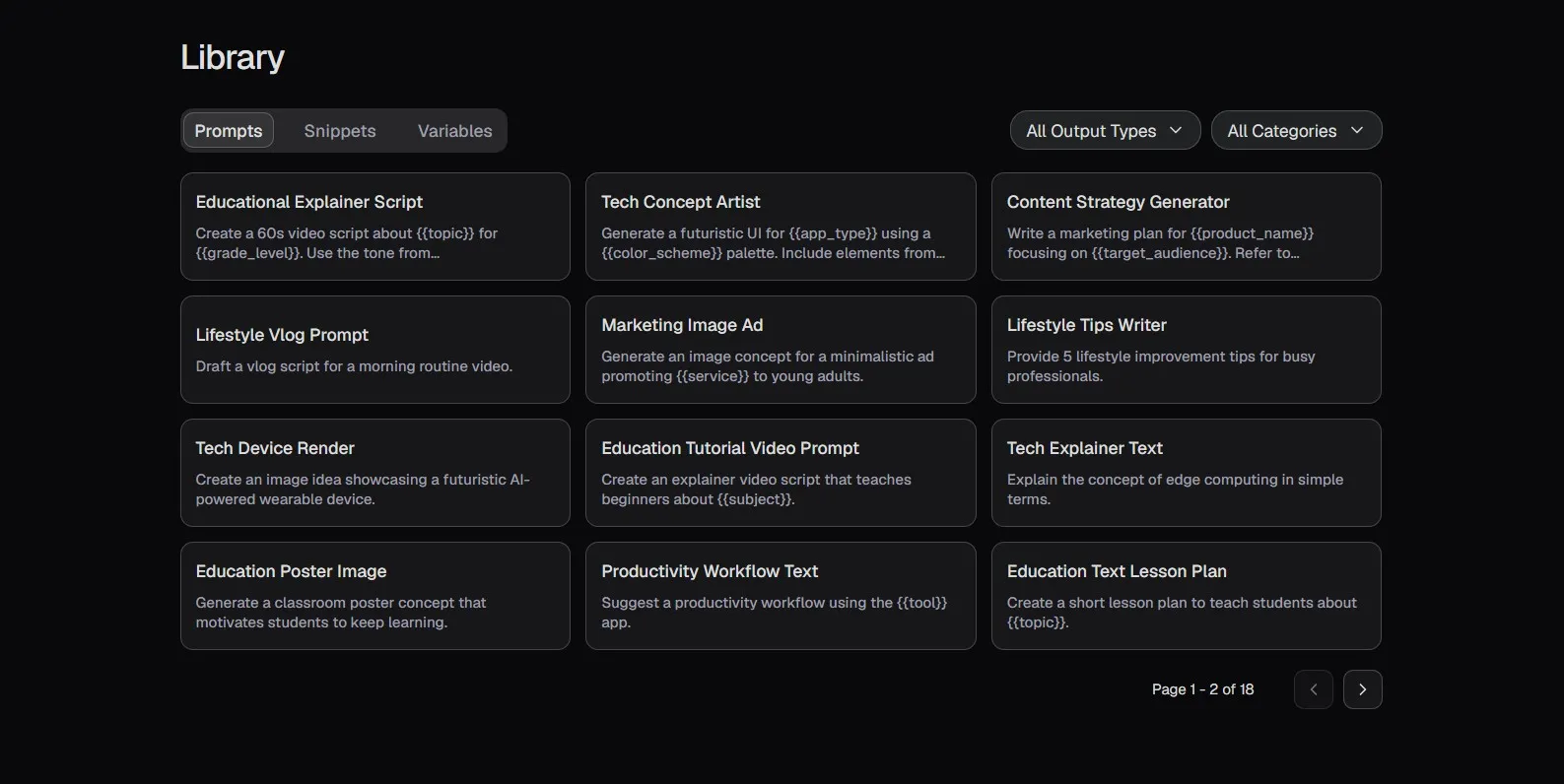
Library Page
Browse a collection of ready-to-use prompts in the Library.
Tools Page
Access various tools to help you craft better prompts.
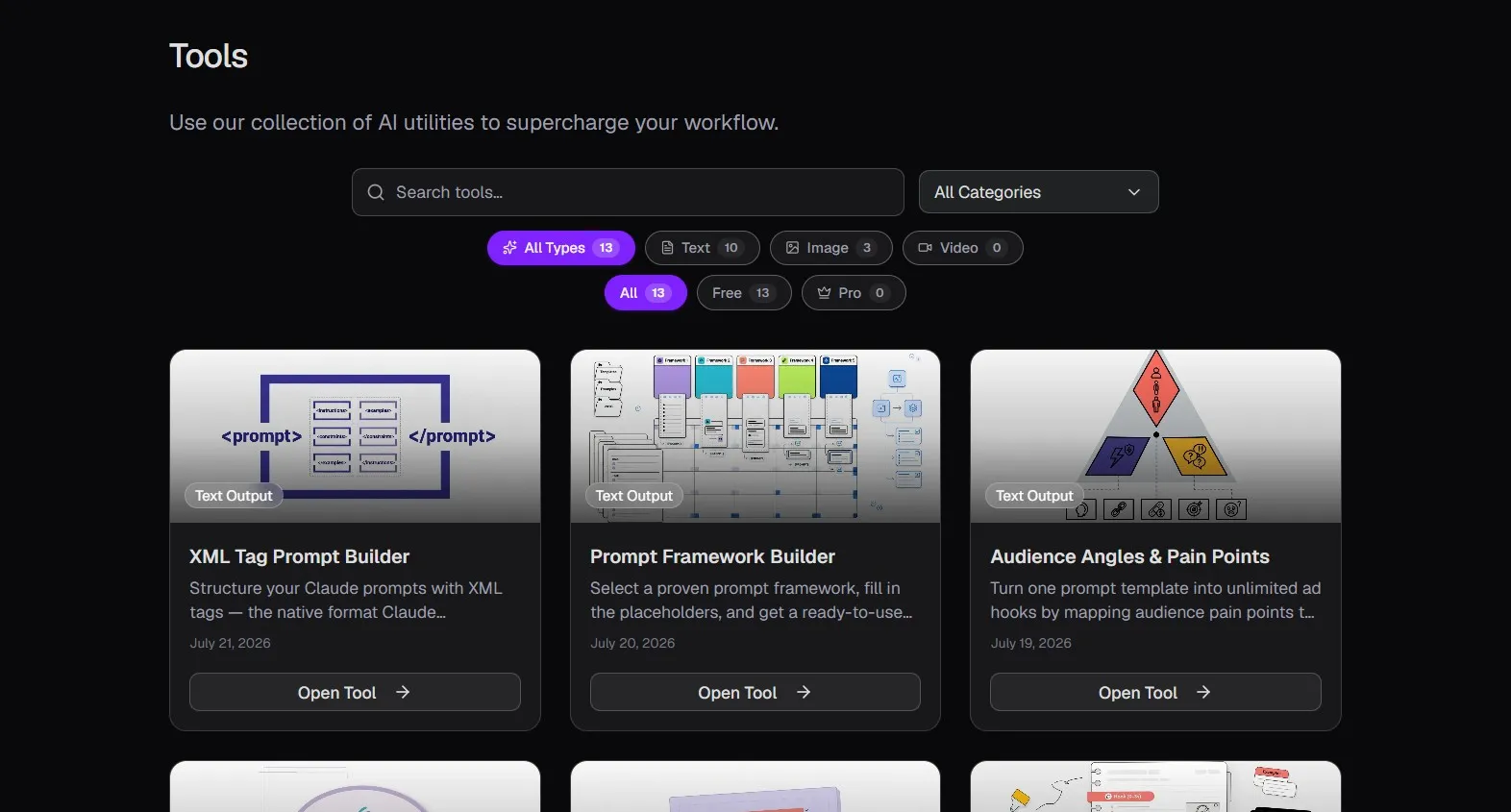
Prompt Framework Builder
Use structured frameworks to build highly effective prompts.
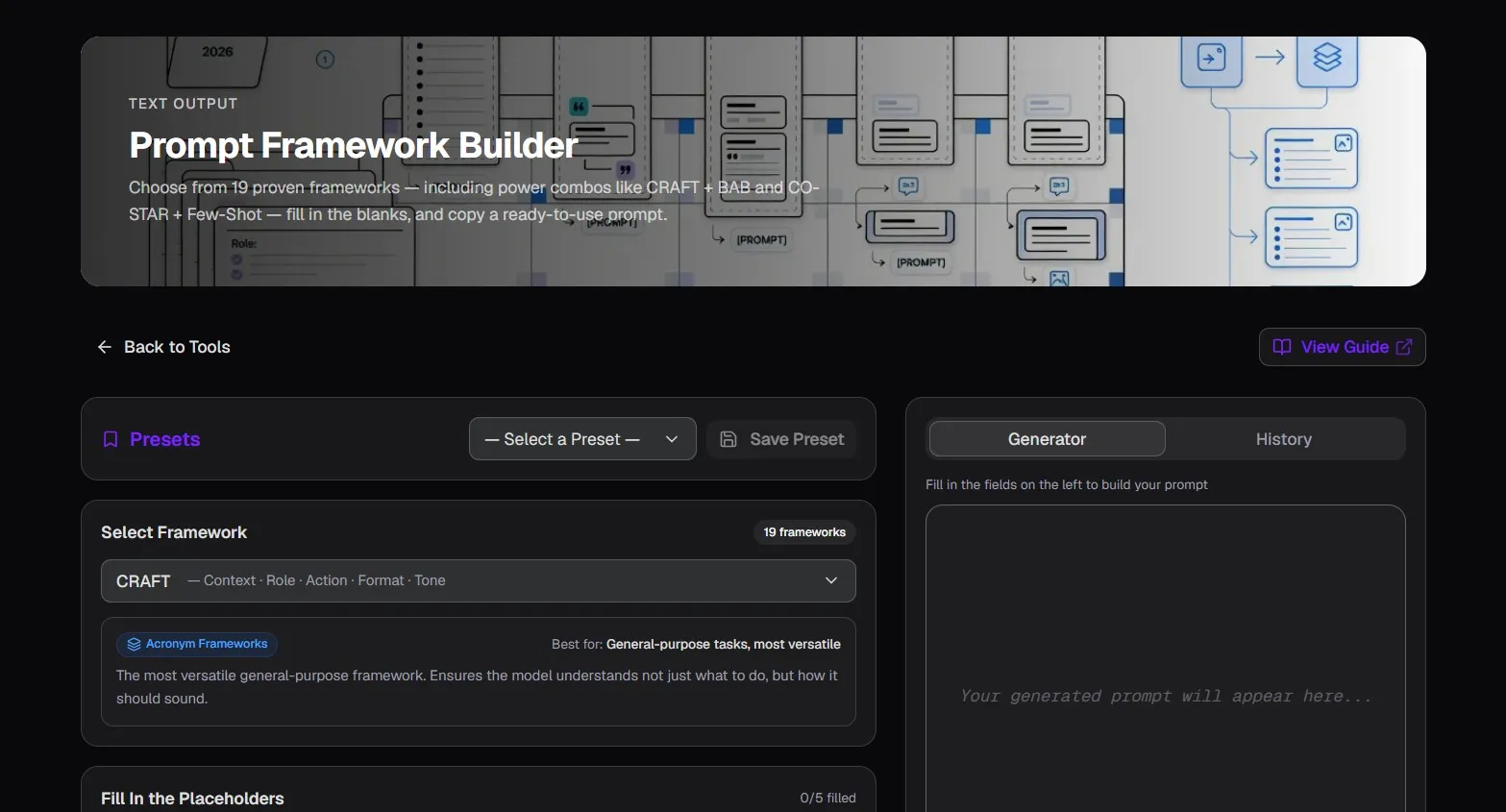
Try the Prompt Framework Builder for free.
3. Apply Variables
Variables allow you to create dynamic, reusable prompts. Let's make a prompt dynamic:
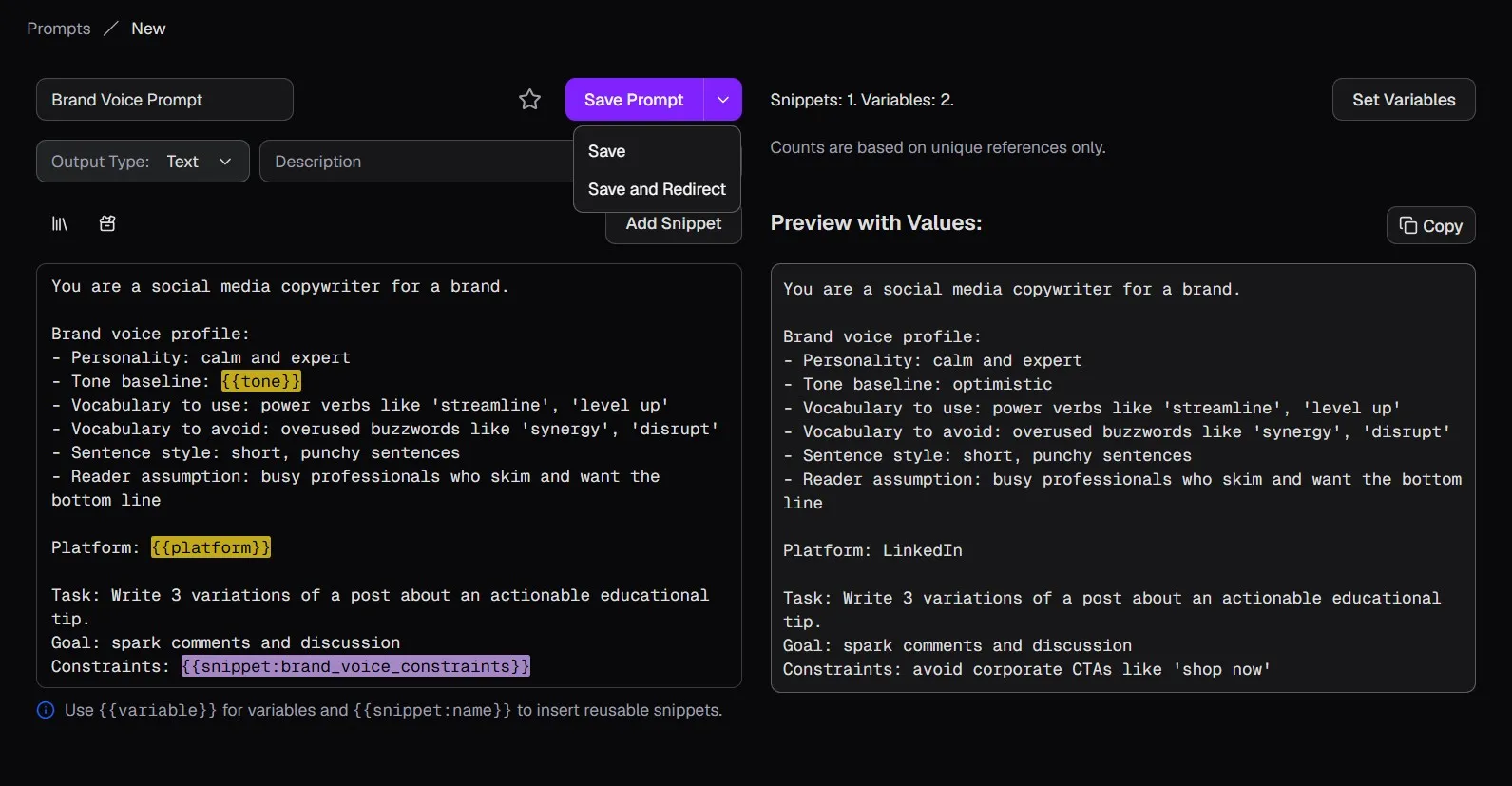
- Replace the word optimistic with {{tone}}.
- Replace the word LinkedIn with {{platform}}.
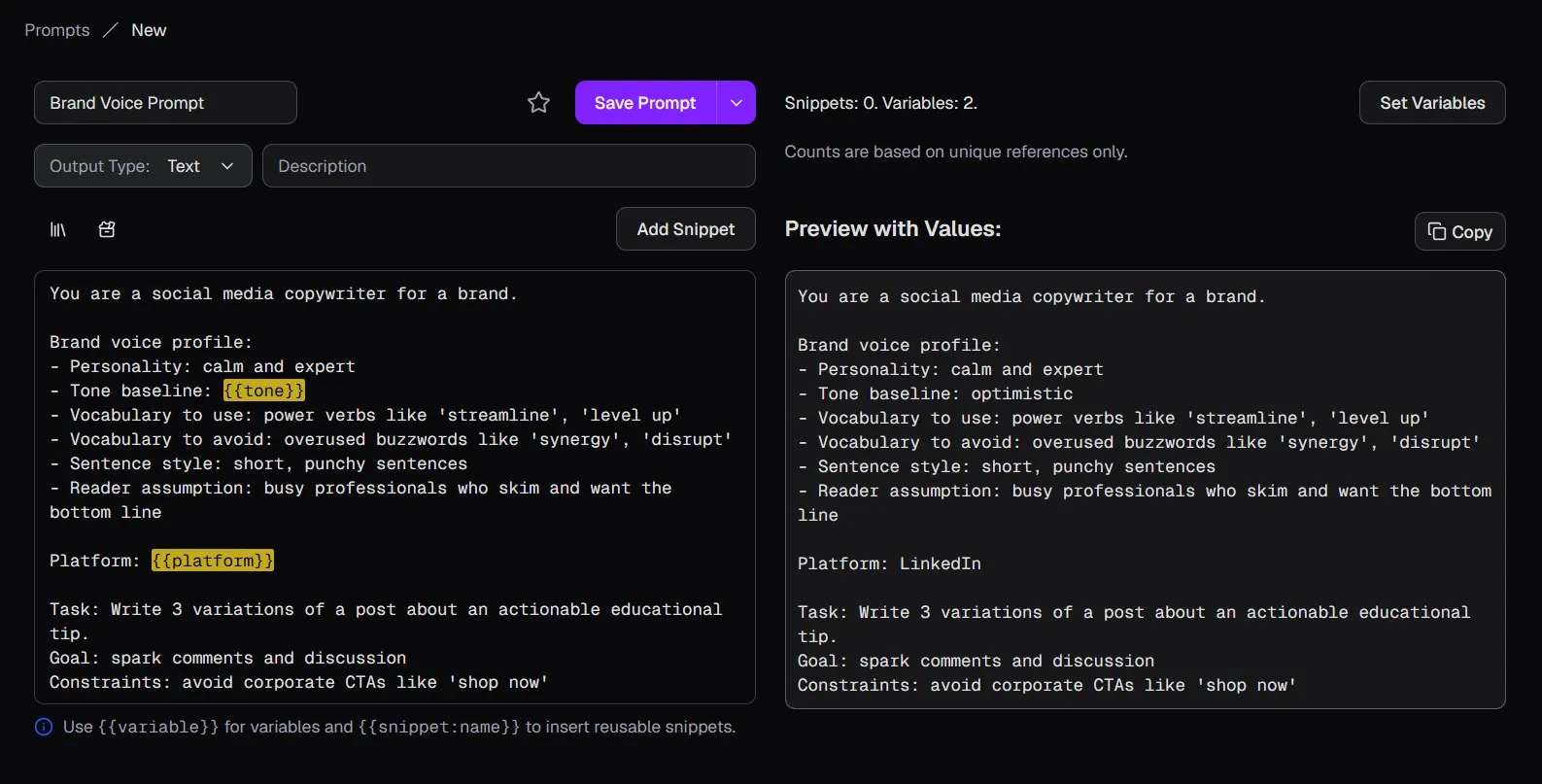
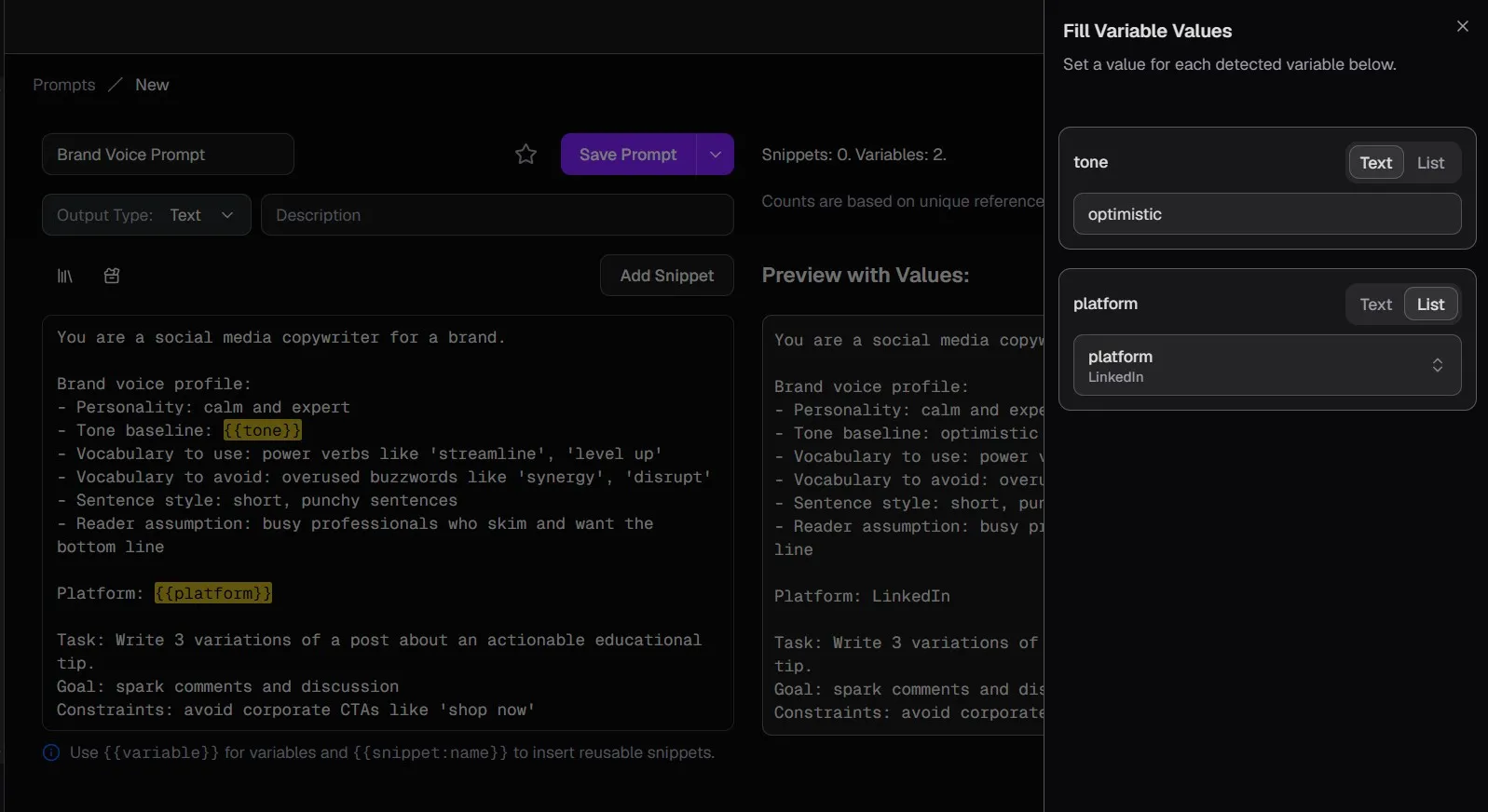
Next, open the variable panel by clicking the Set Variable button in the top right corner.
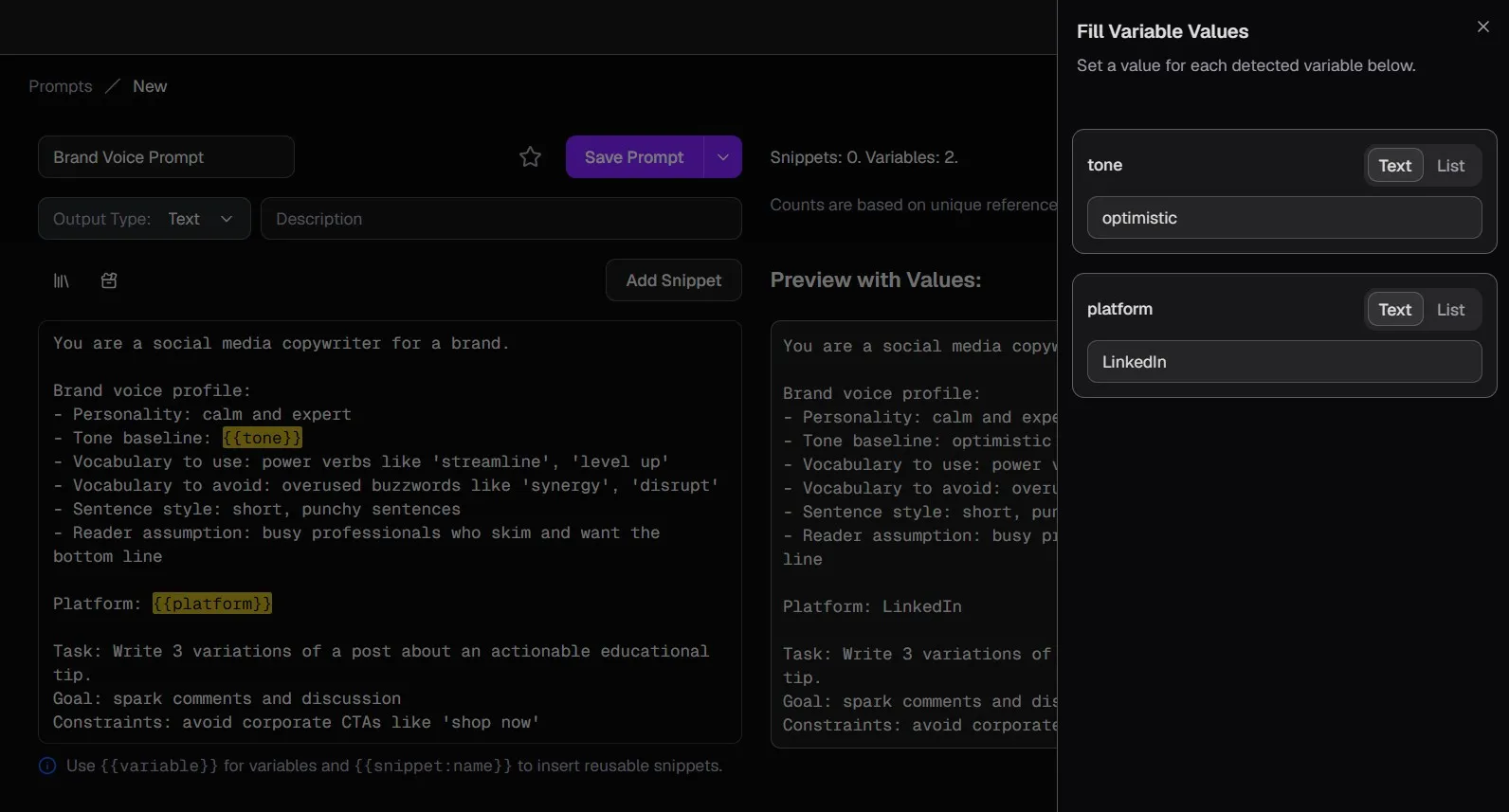
You have two options for setting variable values:
- Text tab: Enter a custom text value directly.
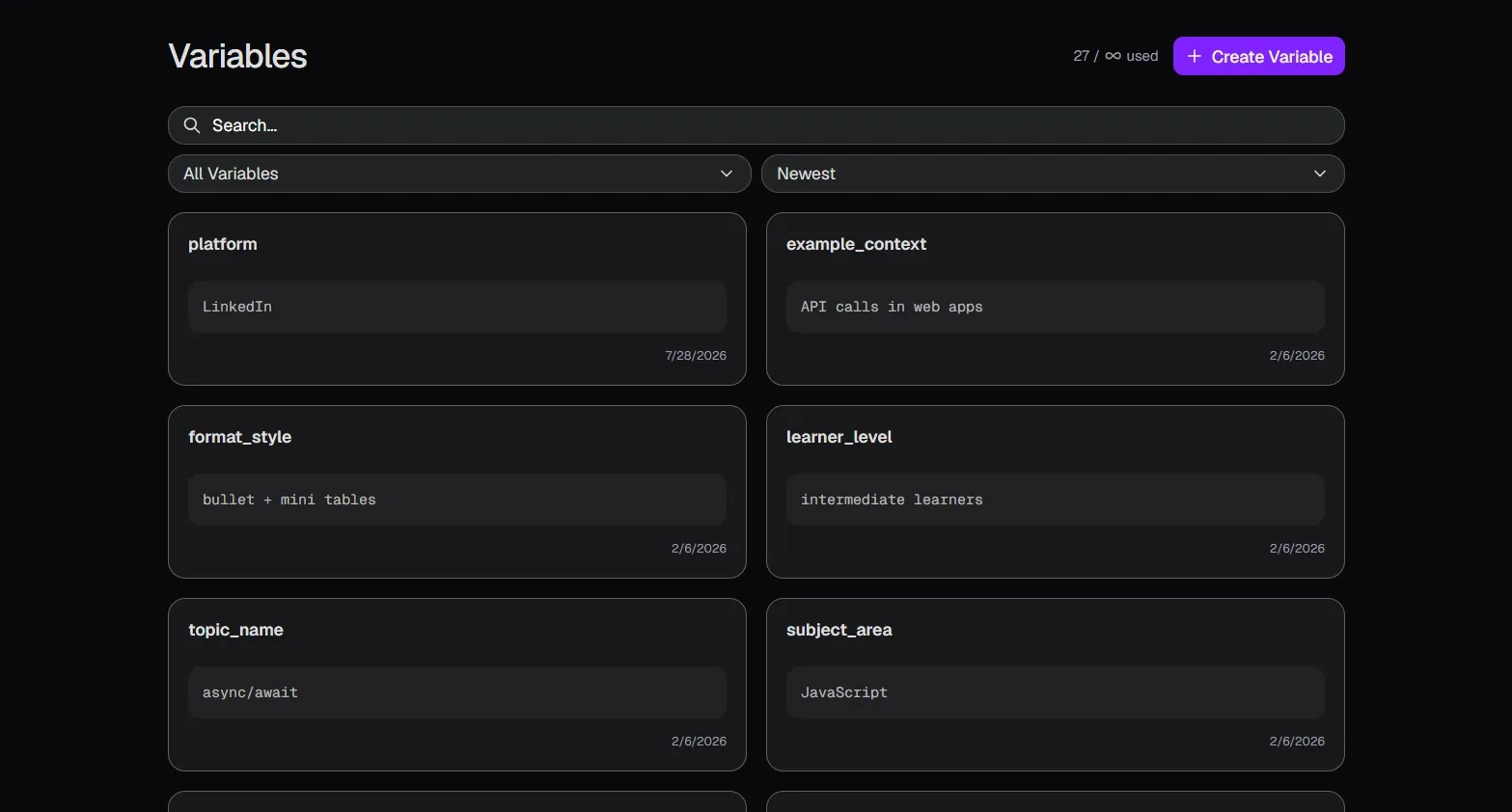
- List tab: Select from predefined values that you have created on the Variables page.
Variables Page
Manage all your custom variables from a central location.
4. Add Snippets
Snippets are larger blocks of reusable text. Let's add a snippet to our prompt:
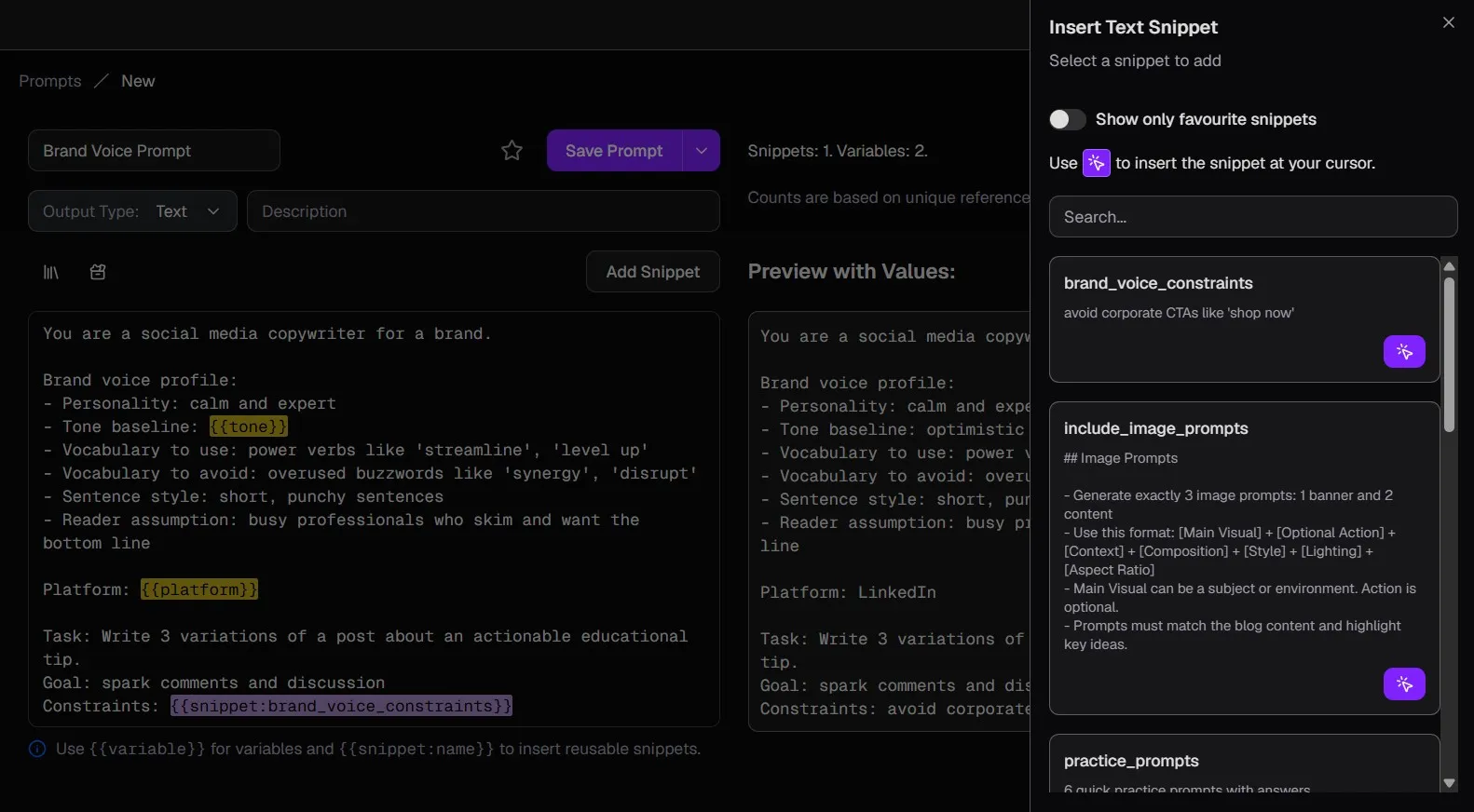
- Replace the phrase avoid corporate CTAs like 'shop now' with {{snippet:brand_voice_constraints}}.
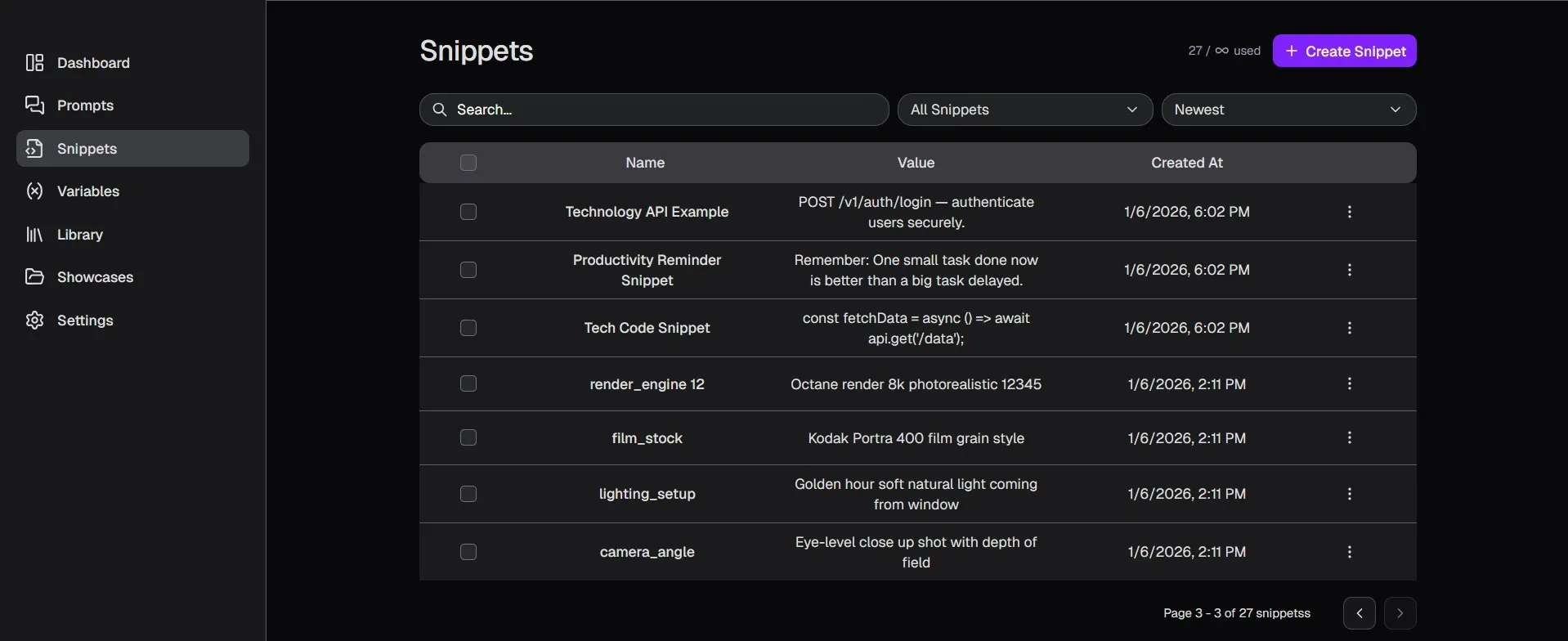
Unlike variables, snippets must be created on the Snippets page before you can use them.
To use a snippet, prefix the snippet name with snippet: inside double curly braces.
For example, {{snippet:brand_voice_constraints}} will be replaced by the full text avoid corporate CTAs like 'shop now'.
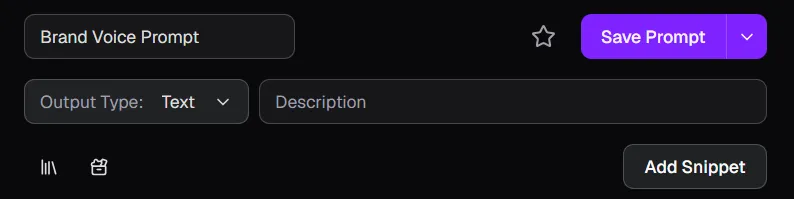
Another way to add snippets is by clicking the Add Snippet button below the description field. This opens a panel where you can select from your existing snippets.
The selected snippet will be inserted at your current cursor position in the prompt box.
Snippets Page
Create and manage your reusable snippets here.
5. Save Your Prompt
Finally, save your work! You have two save options:
- Save (Default): Saves the prompt and keeps you on the current page to continue editing.
- Save and Redirect: Saves the prompt and returns you to the Prompts page.
On This Page